User's Guide (Ivanti Secure Access Client for macOS Sonoma(14) and after)
目次
- 1. Available platforms
- 2. How to change the password
- 3. Setting of Pulse Secure Client
- 4. How to login to SSL-VPN of J-PARC
- 5. How to logout
- 6. Compliance check
- 7. The length of time-out
1. Available platforms
Supported platforms of Ivanti Secure Access Client(application for connection) for macOS
For macOS Ventura(14) and after
Requirement Software
- Web browser : Any
- Pulse Secure Client
For the client environments that are enable to connect based on JLAN-support office identified and ones that manufacturer supports, visit here.
2. How to change the password
Access to the Password delivery system site to obtain your User ID and initial-password by accessing URL written on the SSL-VPN completion.
Please change the initial-password as soon as you get it.
Reminder
- You should register your new password before using the SSL-VPN because the Initial-password cannot use for login.
- The Initial-password has an expiration date. Your account will be locked if the password is not changed.
3. Setting of Ivanti Secure Access Client
3.1 Download software (Ivanti Secure Access Client)
Click below and download packages below.
3.2 Installation of Ivanti Secure Access Client
Install the downloaded packages on the environment as below.
- Account that has administrator rights
- Please allow it when a permission request is displayed.
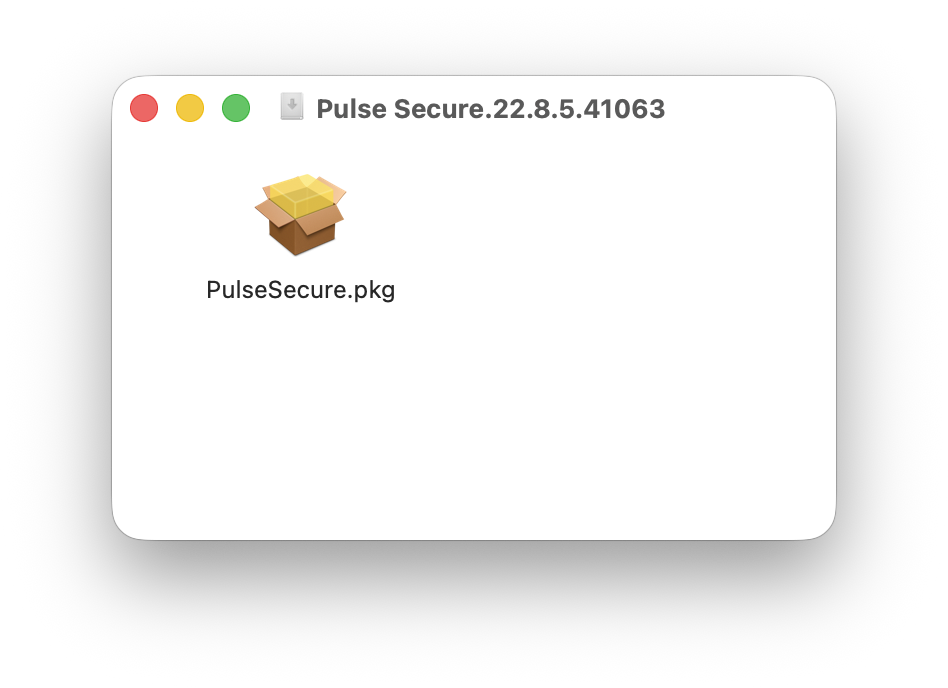
| Click on the downloaded installation package. | |
 |
|
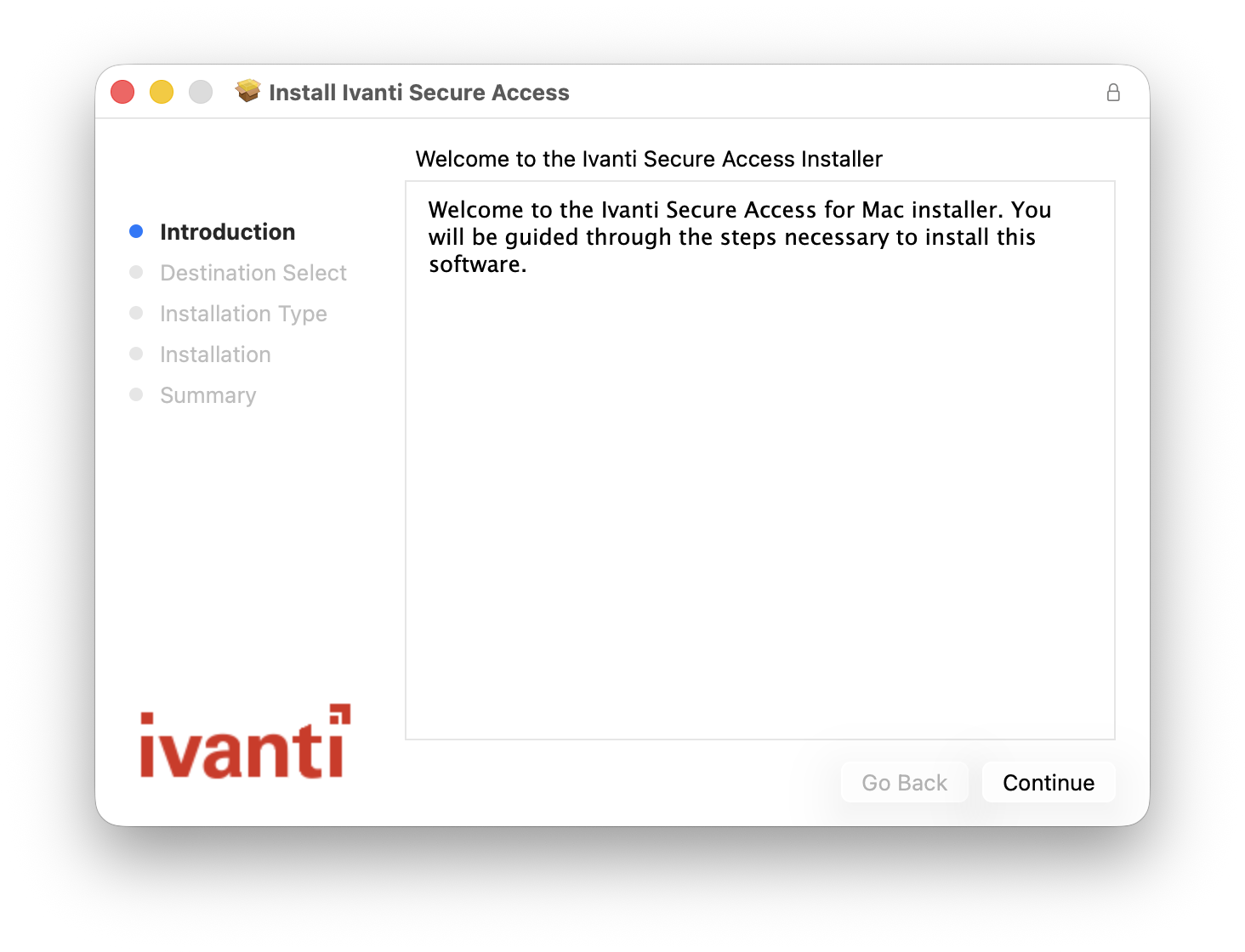
| Click the "Continue" button. | |
 |
|
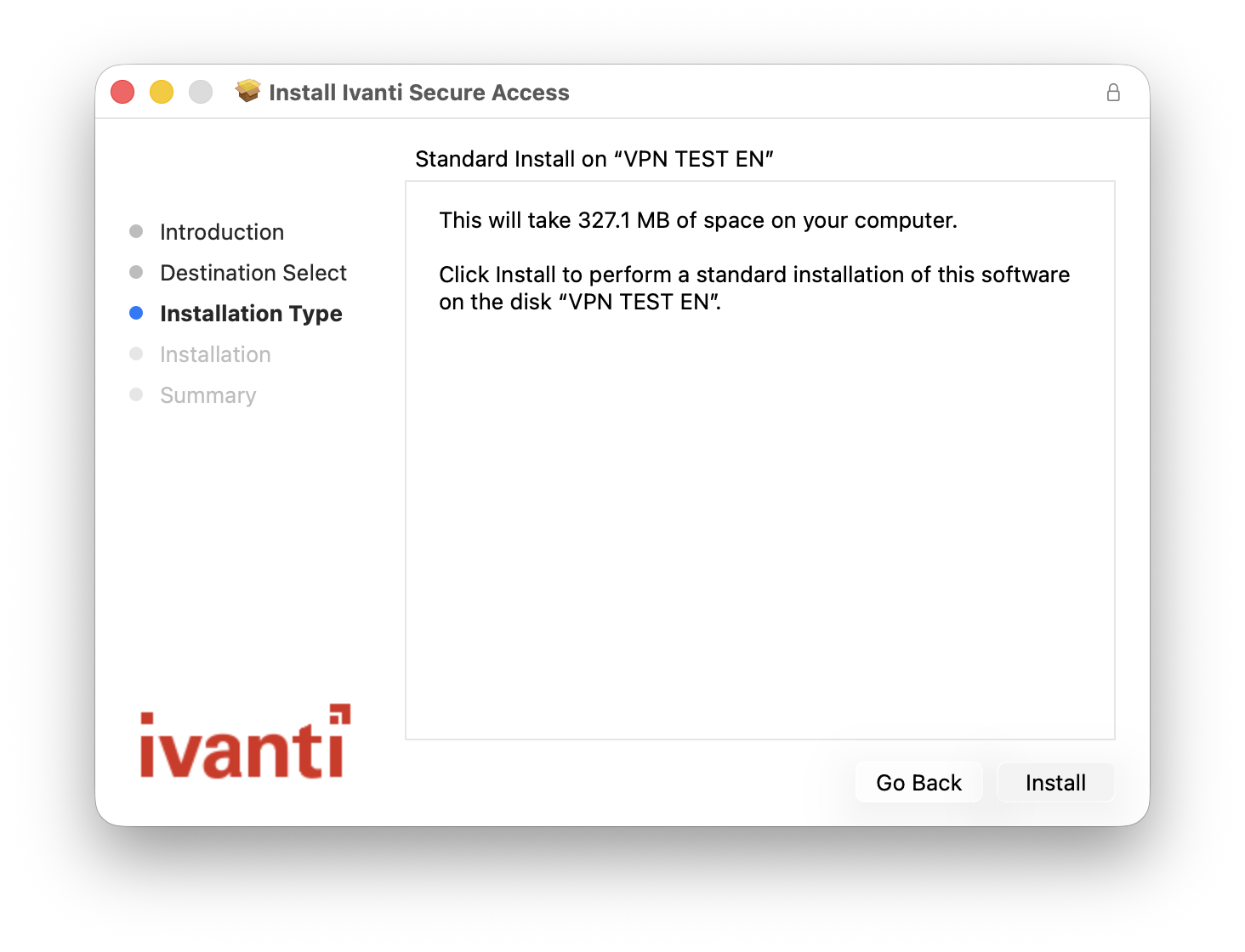
| Click the "Install" button. | |
 |
|
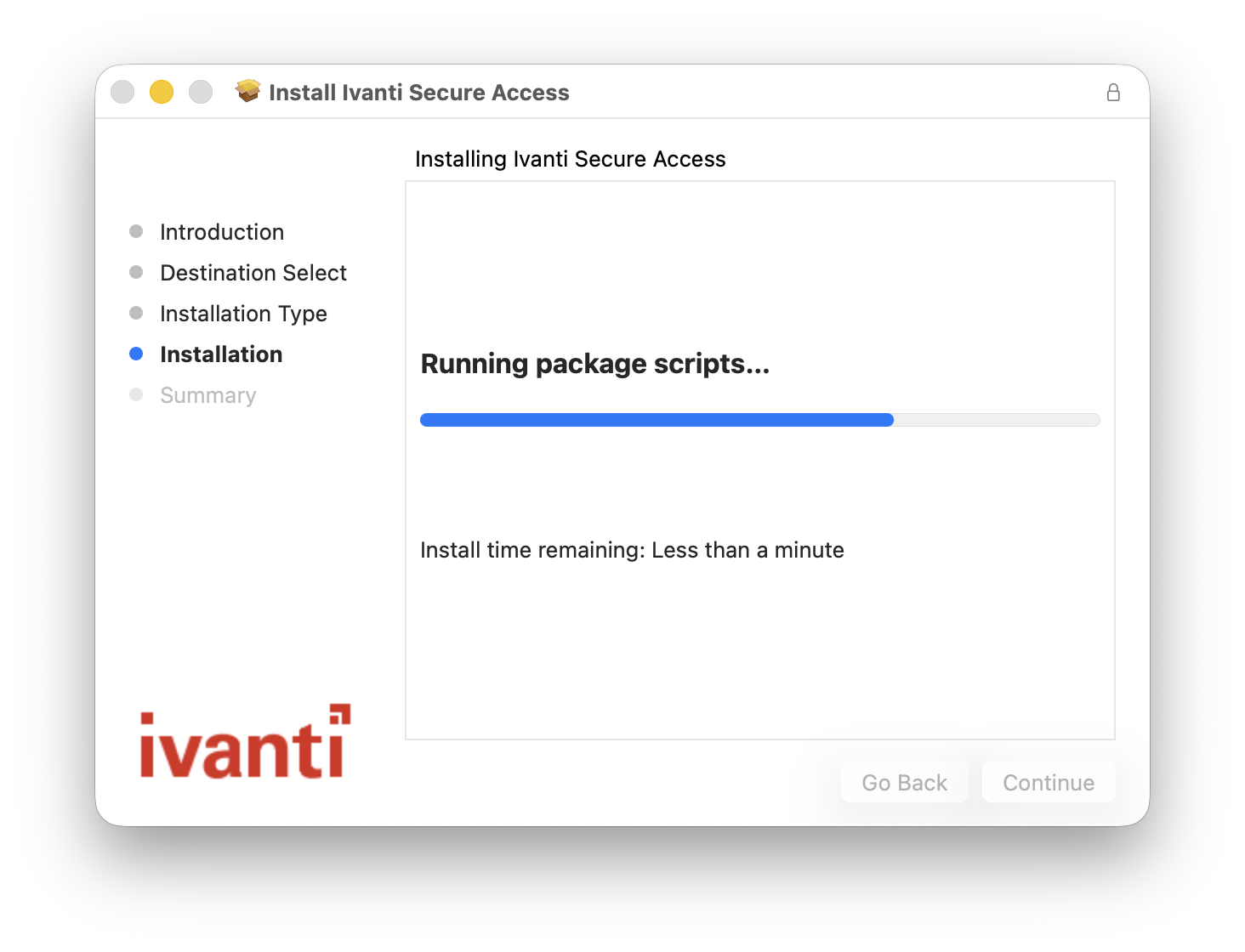
| Wait until the components are installed. | |
 |
|
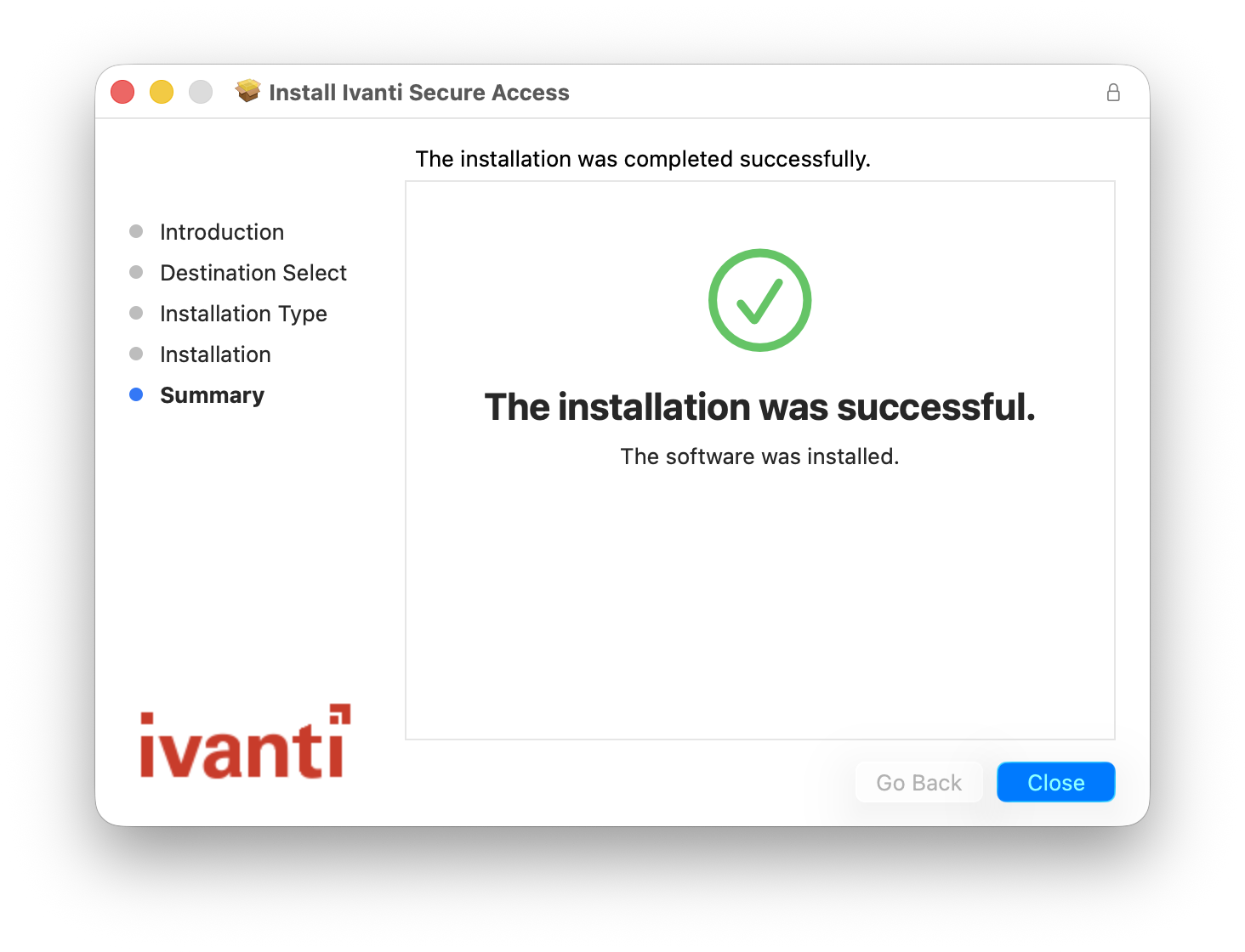
| When the installation is complete, click the "Close" button. | |
 |
|
3.3 Setting of Ivanti Secure Access Client
Changing the user interface mode(at the time of first access)
( The current classic UI will no longer be available in future versions. )
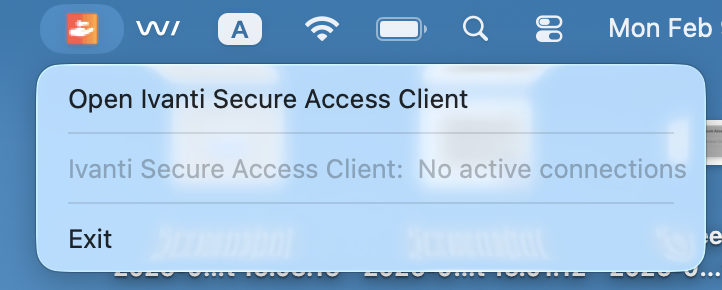
Click on "Open Ivanti Secure Access Client" on the menue bar.
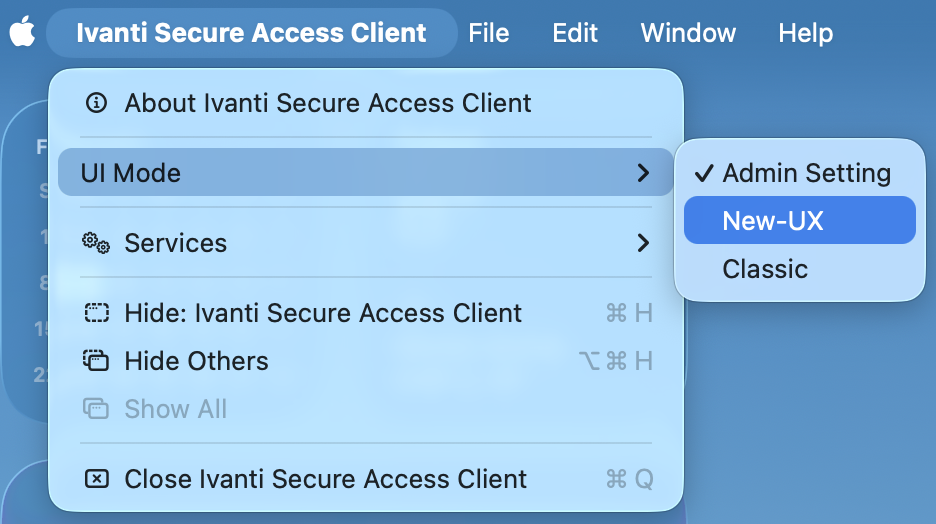
Click on "UI Mode" -> "New-UX".
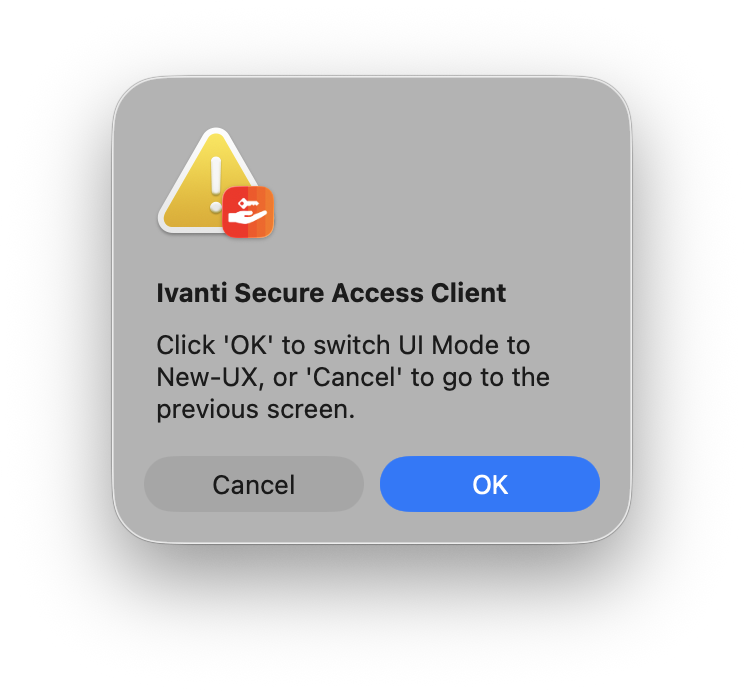
Click on "OK" button.
2 Registration of Connection(at the time of first access)
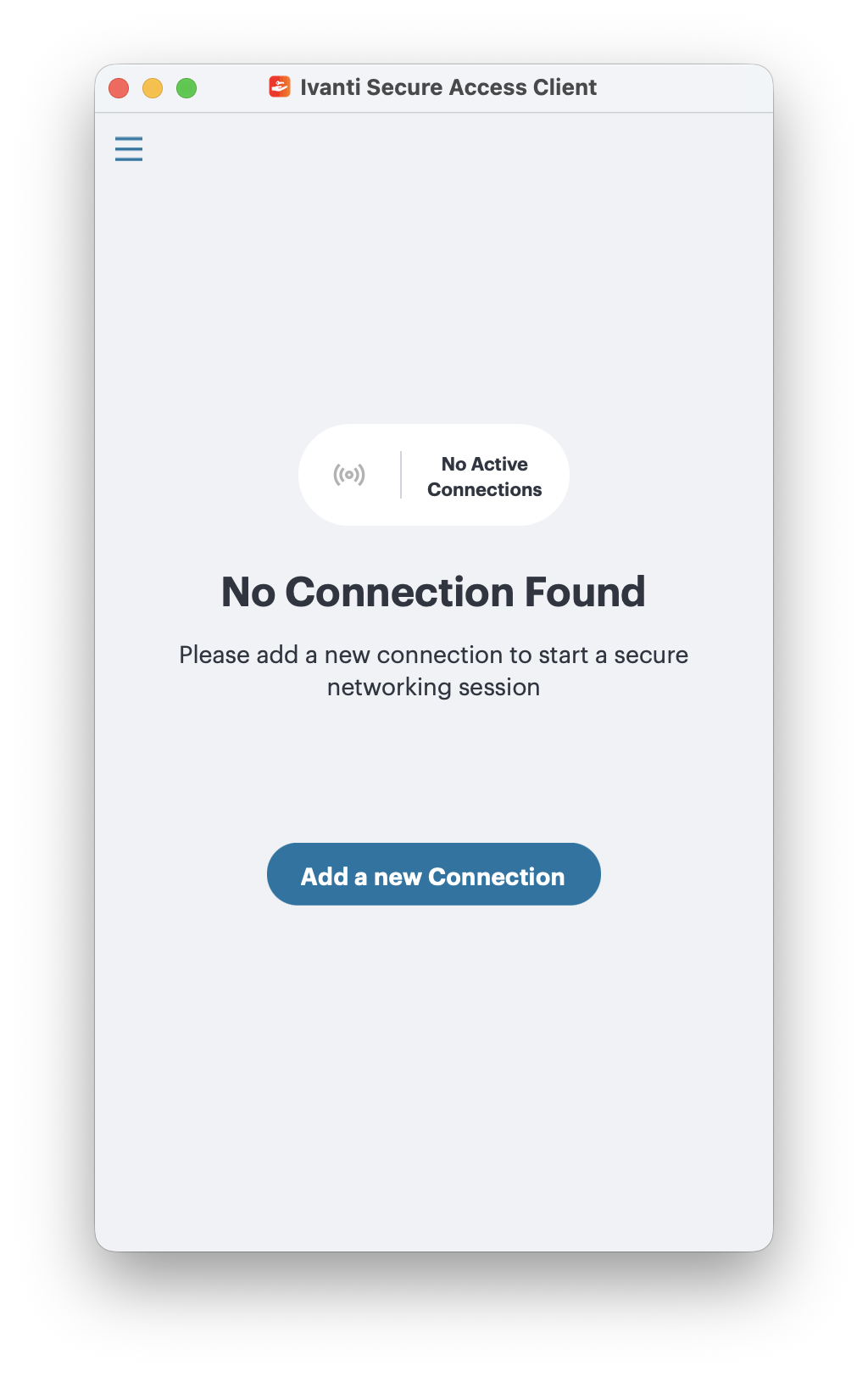
Click "Add a new Connection" button on “Ivanti Secure Access Client” window.
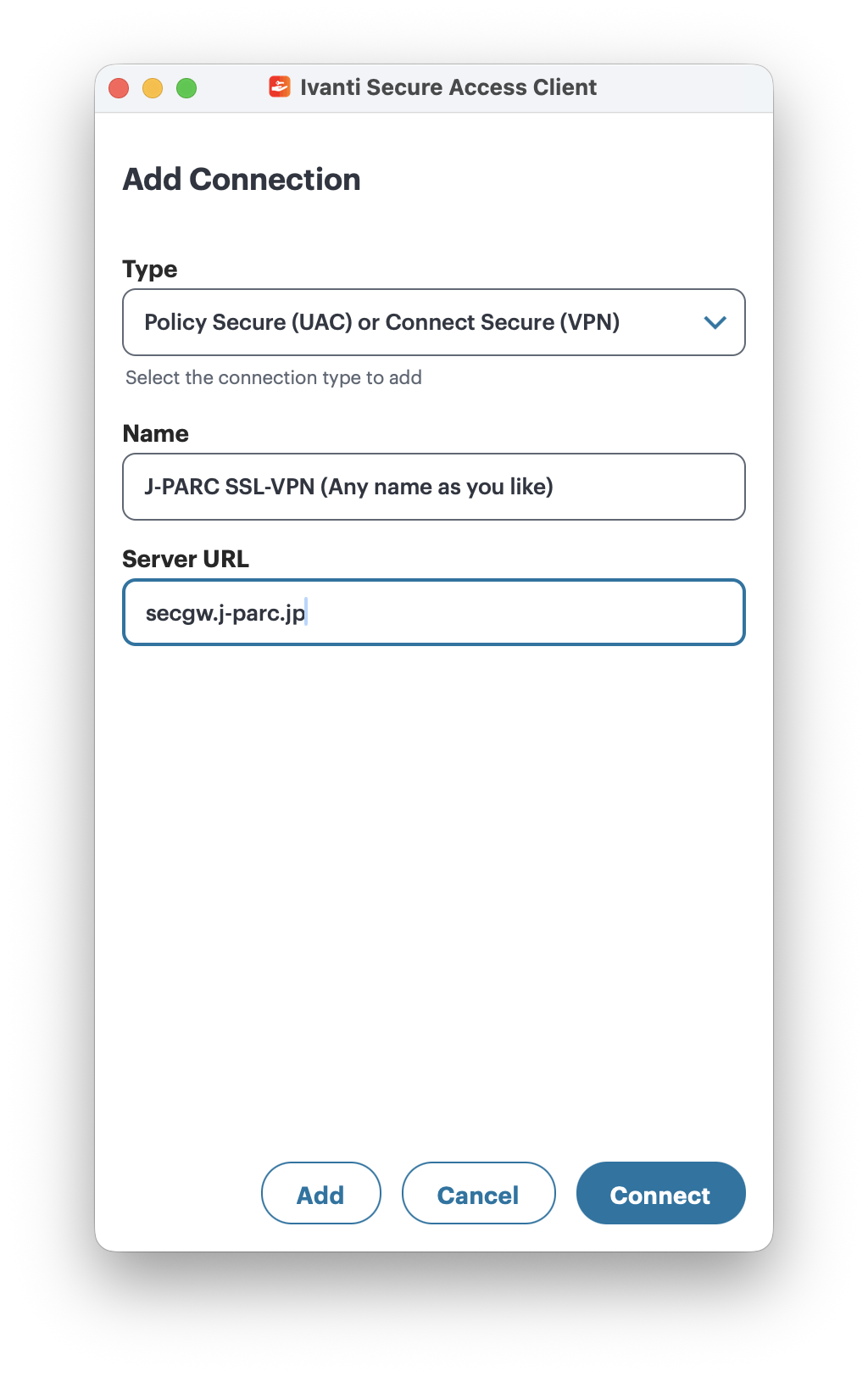
Enter Type, Name and Server URL as below.Then click "Add" button.
| Type | : | Policy Secure (UAC) or Connect Secure (VPN) |
| Name | : | Any name as you like |
| URL | : | secgw.j-parc.jp |
Presetting of Ivanti Secure Access Client is completed.
4. How to login to SSL-VPN of J-PARC
4.1 Start browser, and access to the certification site.
URL for SSL-VPN of J-PARC connection( Accessible from JLAN, JAEA-LAN and KEK-LAN. )
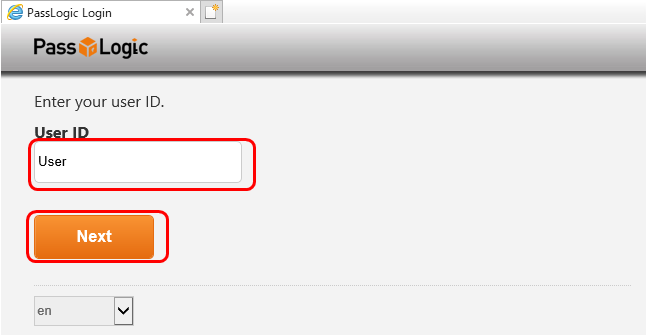
4.2 Input your "Login ID", and click the "Next" button.
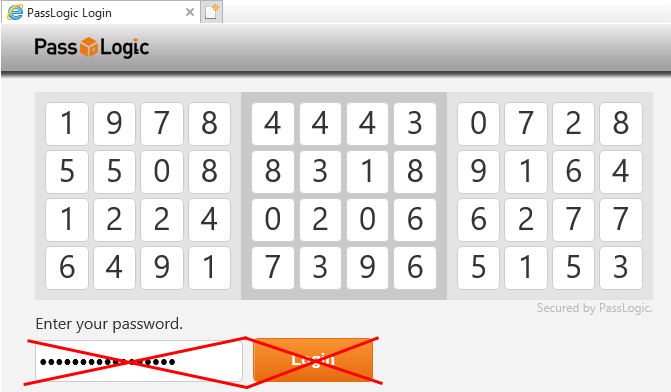
4.3 A matrix screen is displayed but do not logging-in on this browser. Go to instruction 4.4
4.4 Click on "Open Ivanti Secure Access Client" on the menue bar.
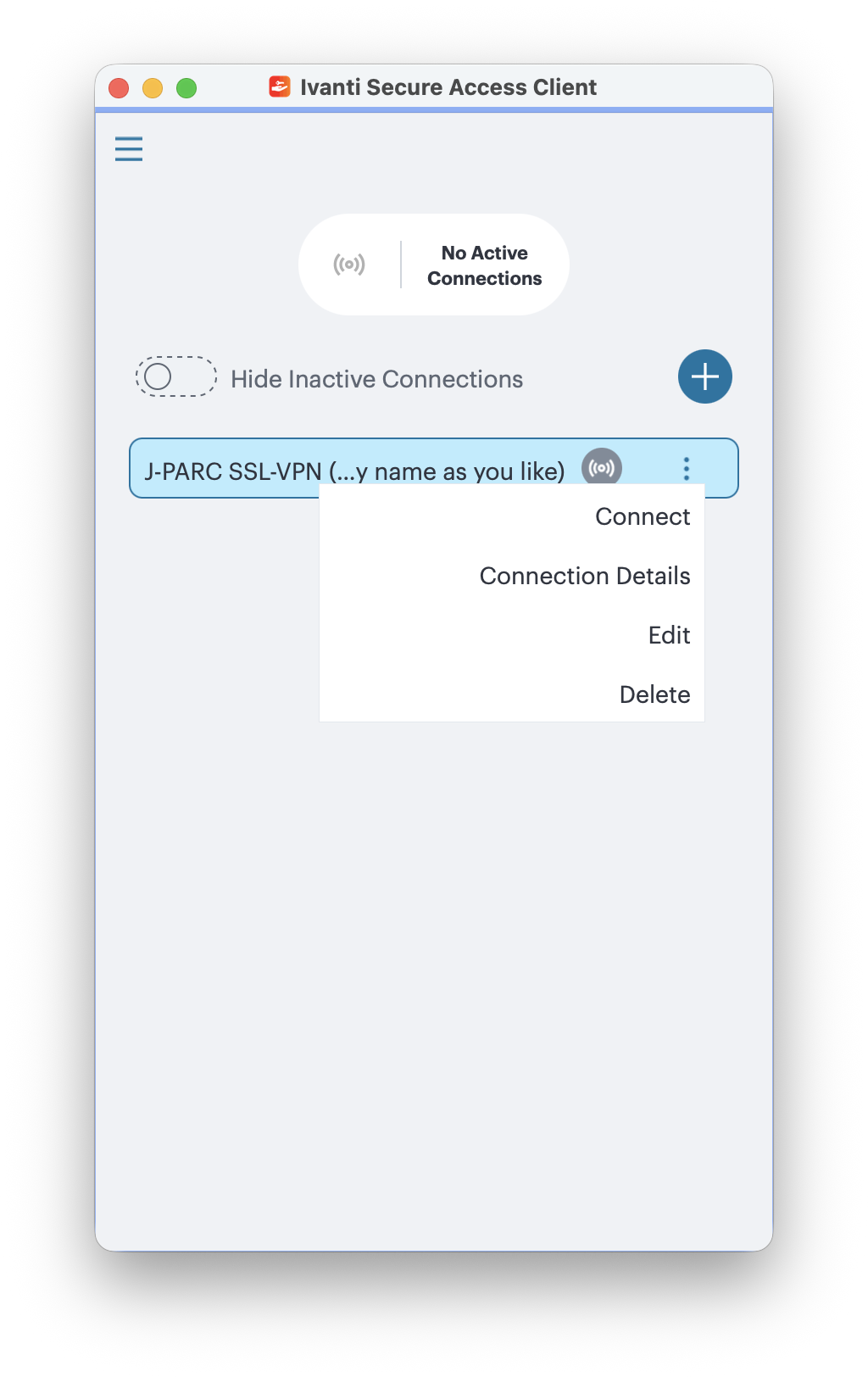
4.5 Click " ⋮ " -> "Connect" button on "Connections" of Ivanti Secure Access.
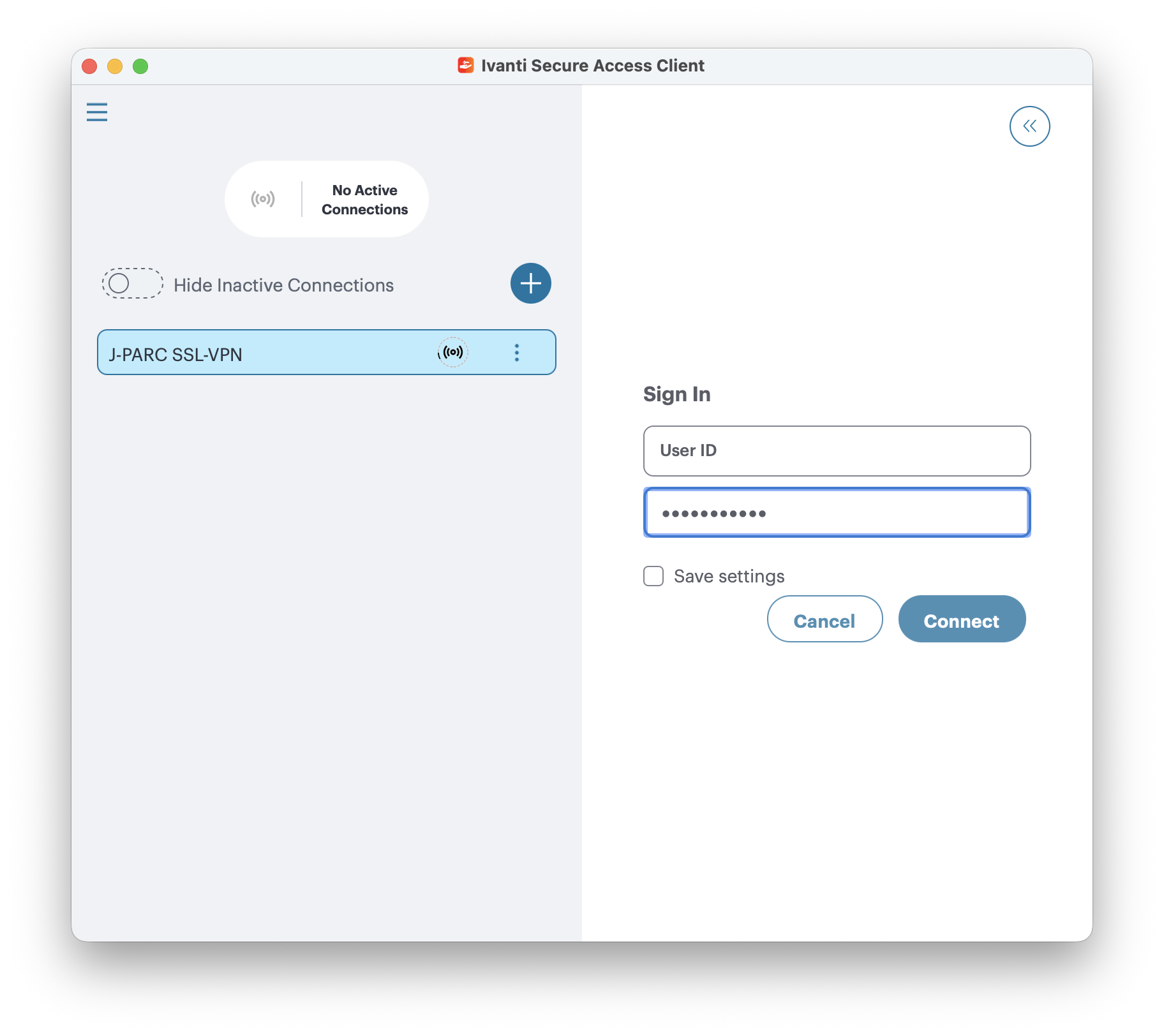
4.6 Enter ID for Username and Password on Ivanti Secure Access Client
Enter ID for Username and Password.
| Username | : | User ID |
| Password | : | PIN (fixed characters) and Image-password (location in the matrix) |
| Save settings | : | Do not check the box of "Save settings". Password will be changed every time. |
<Reminder>
- A matrix is effective for 5 minutes.
Reload the page, if 5 minutes or more passed after the matrix is displayed. - The account will be locked after 10 invalid password trials.
In the case, please contact to JLAN-support office.
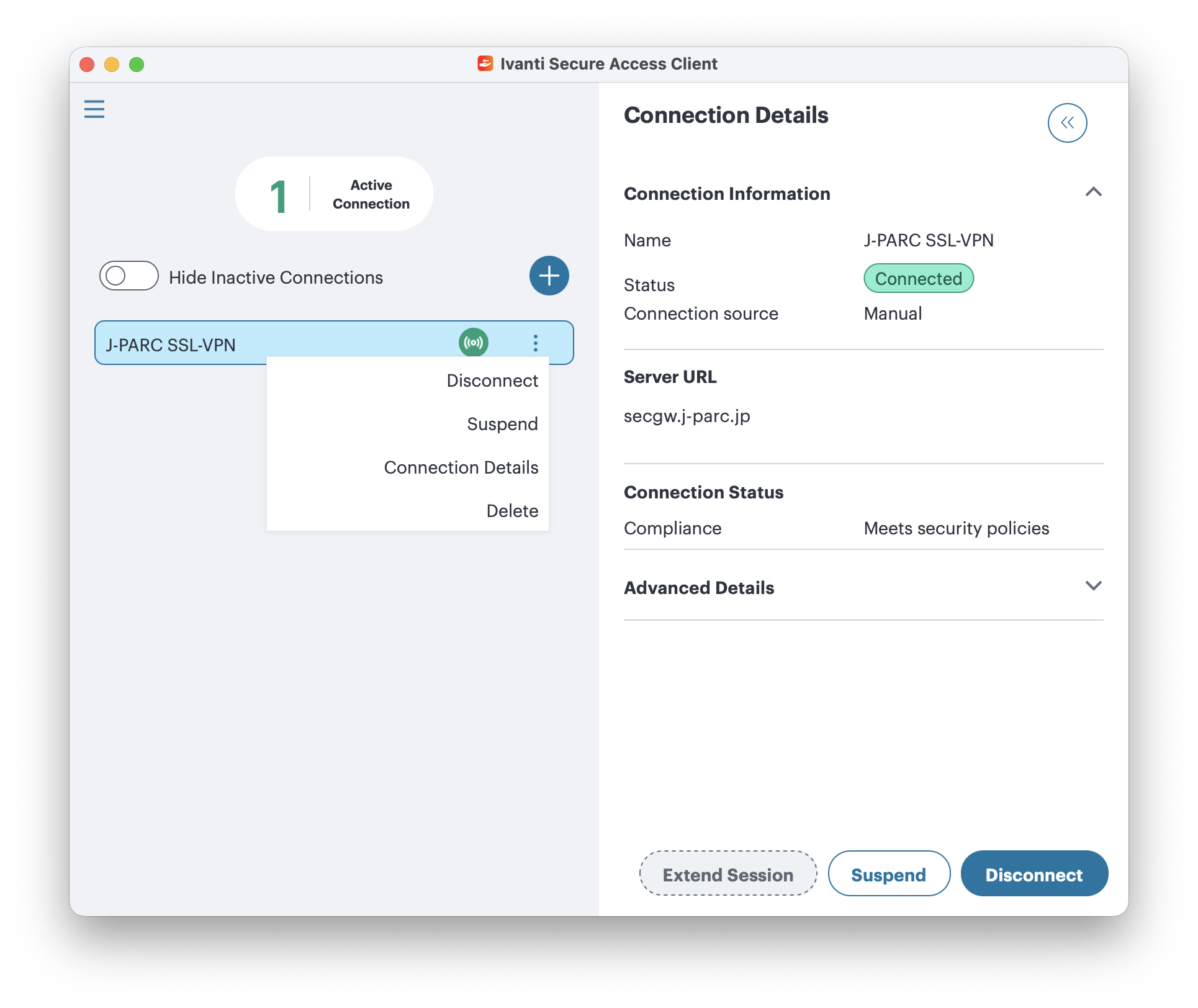
When the compliance check passed, it will be successfully connected.
(Compliance check may take 3minutes by performance of device and connection environment.)
And "Connect" button on "Connections" of Ivanti Secure Access is changed to "Disconnect" (Status "Connected").
After connecting, close Web browser.
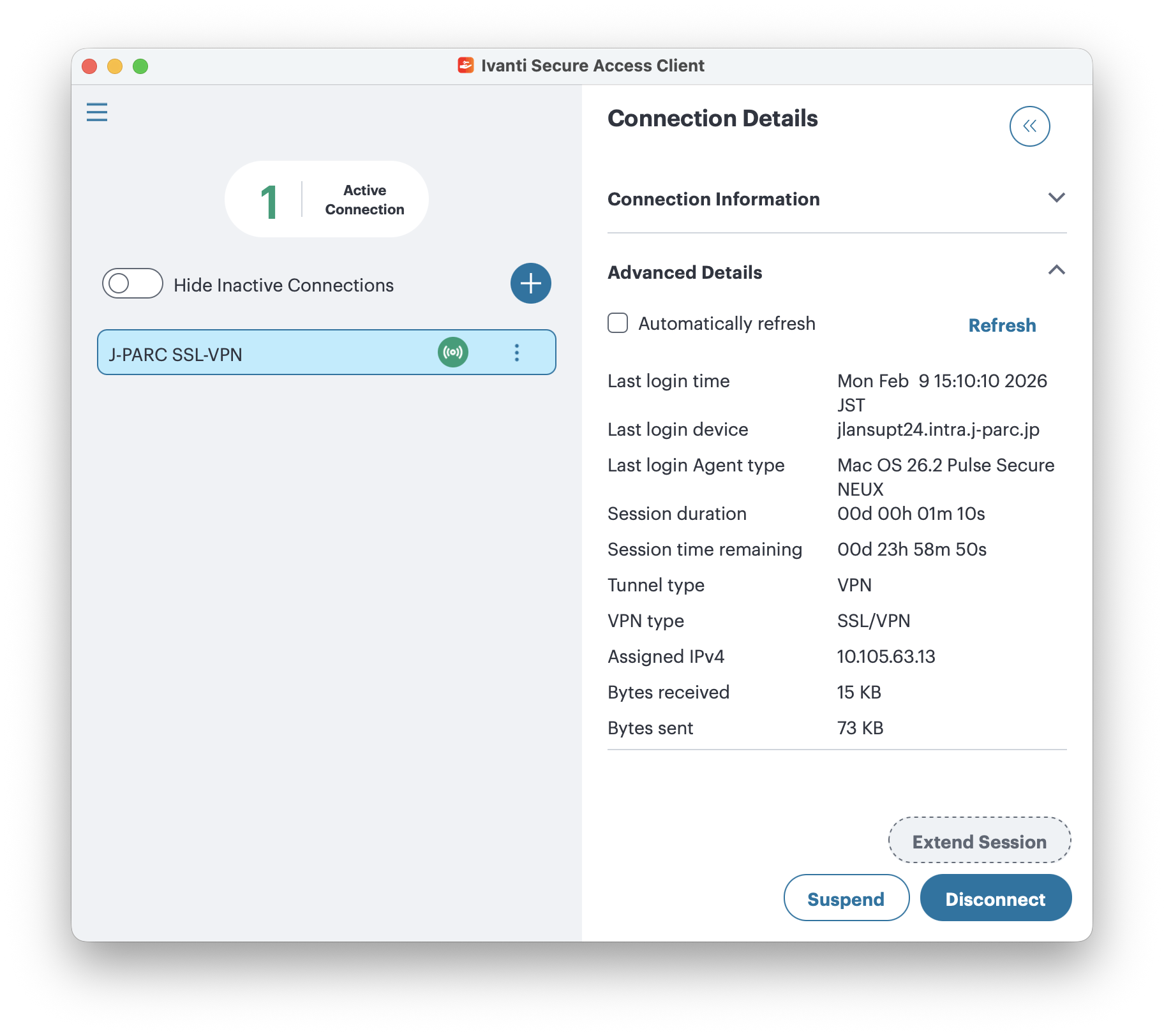
4.7 Confirmation for connection status
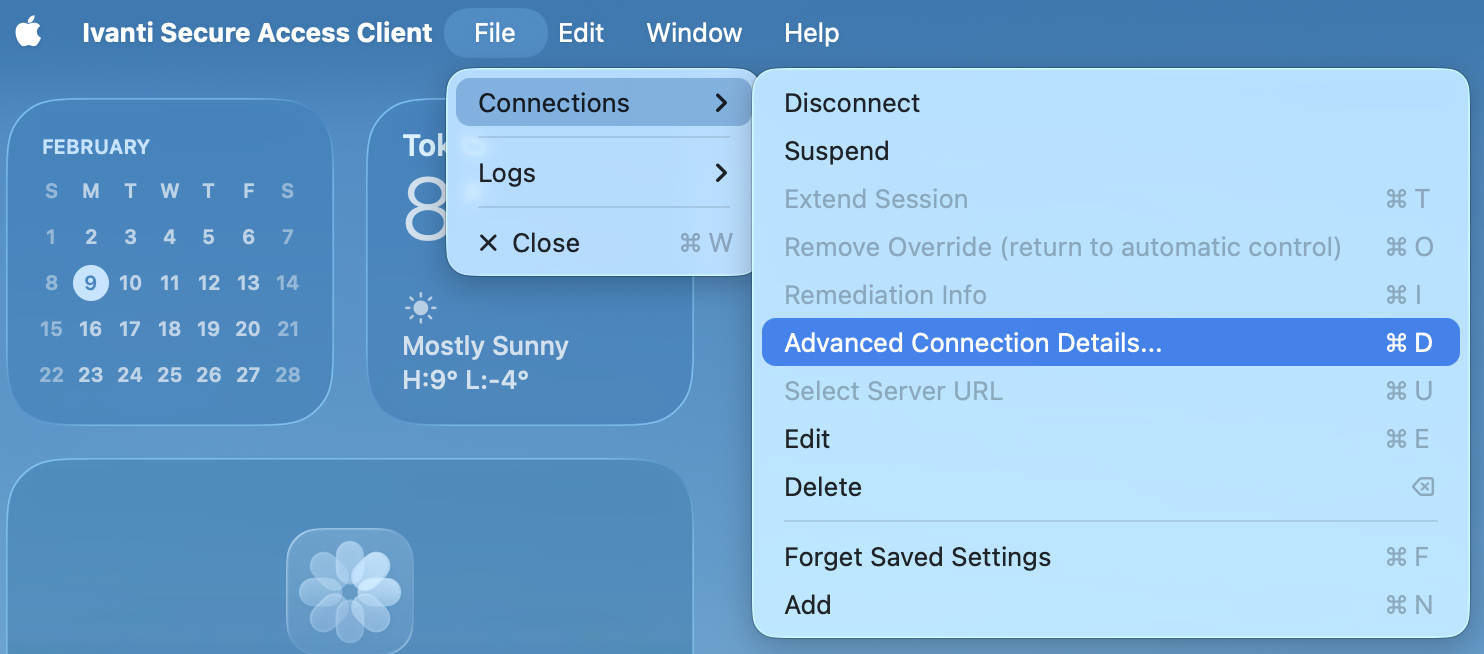
Confirm the IP address on the network and data transfer status details.
Choose "File > Connections > Advaned Connection Details"
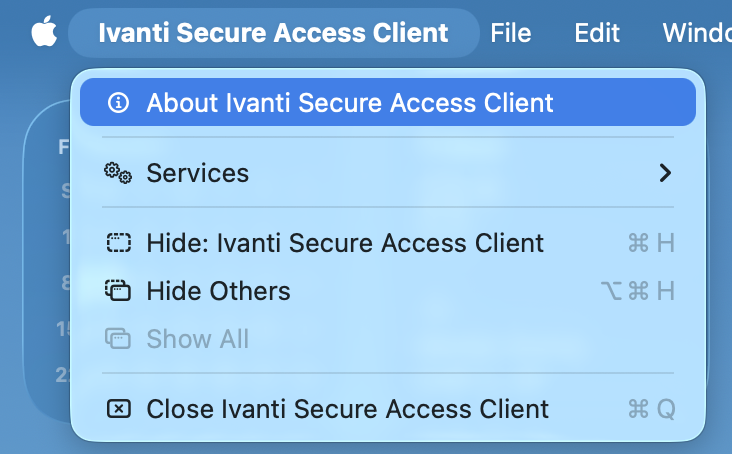
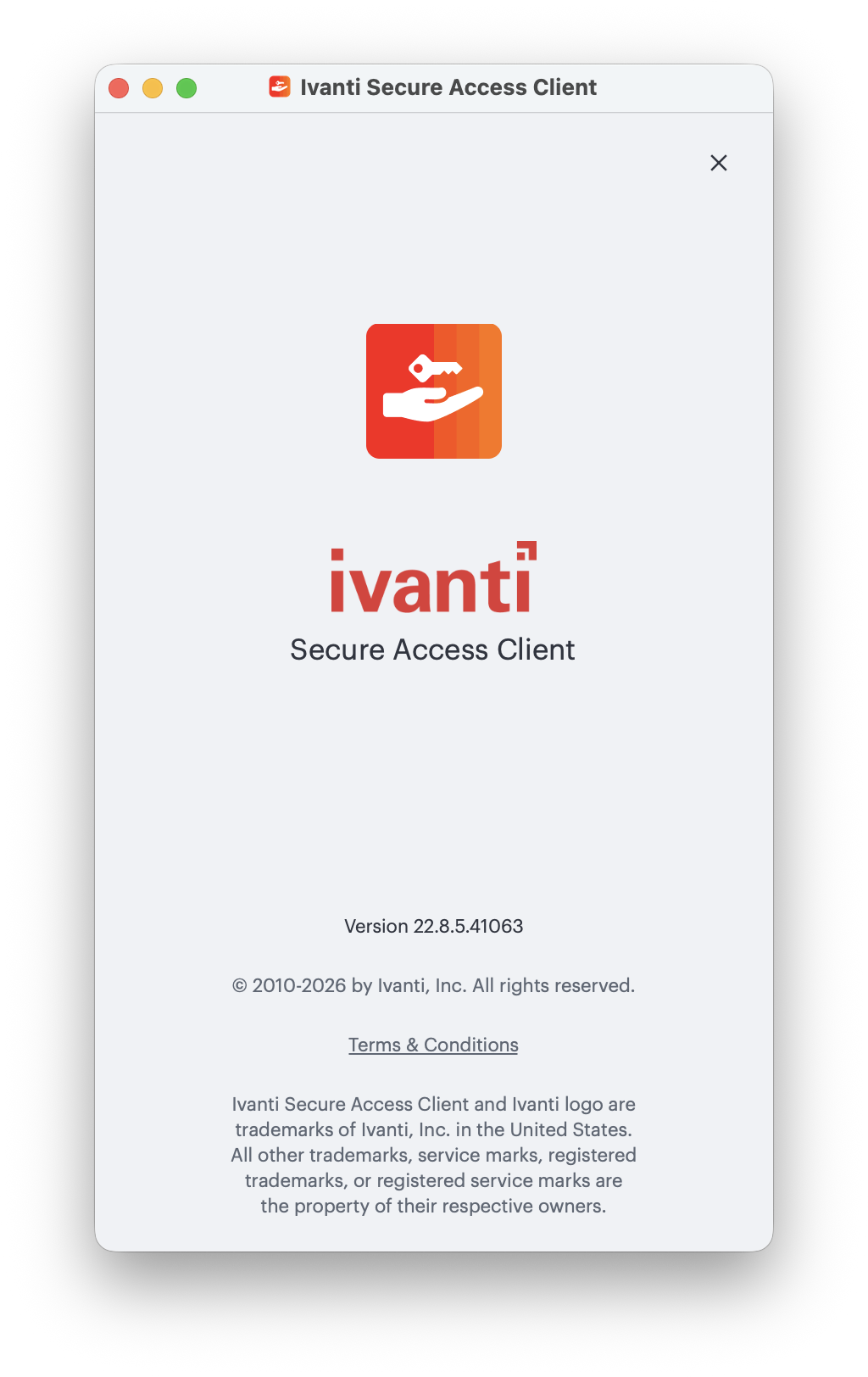
4.8 How to check the Pulse Secure Client version
Select "Ivanti Secure Access Client" on the menue bar then click "About Ivanti Secure Access Client" from the pulldown menu.
5. How to logout
Logout from "Ivanti Secure Access Client" window.
Click the "Disconnect" button on the "Ivanti Secure Access Client" window.
6. Compliance check
When you use your PC to connect to JLAN with SSL-VPN, your PC should be passed the compliance check executed by the VPN-system.
The check-list of the compliance check is the following;
6.1 OS, Web-browsers
- Visit here.
- OS should be updated to the latest.
- Applications should be installed most recent version.
6.2 Anti-virus software
- Install anti-virus software listed in"Supported anti-virus softwares" to your PC.
- The pattern file in your PC for the anti-virus software should be updated in 7 days.
- Real time protection is effective.
7. The length of time-out
- If your client PC does not transmit network packet to the VPN-system for 1 hour, the VPN connection will be interrupted automatically.
- The maximum session time of the VPN connection is 24 hours.